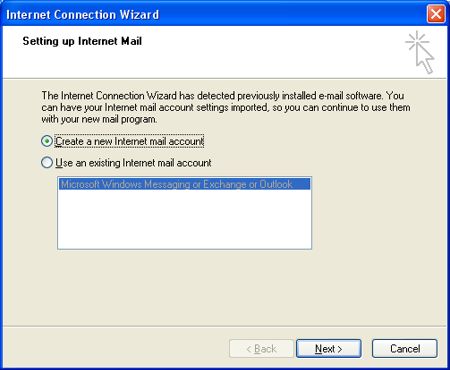
If this is the first time you've opened Outlook Express the "create new account" wizard will start. If you already have an existing account then click on "Tools" then "Accounts" then click on the "Add" button on the top right of the "Internet Accounts" window. The wizard will now start and you will see the following...
Step 2
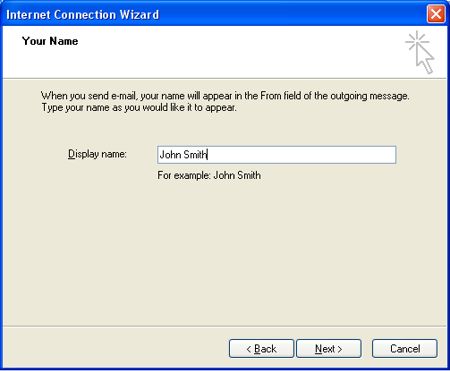
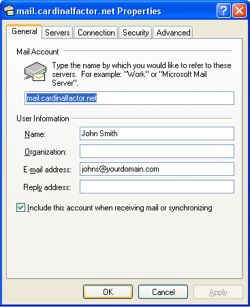
Enter your name.
Step 3
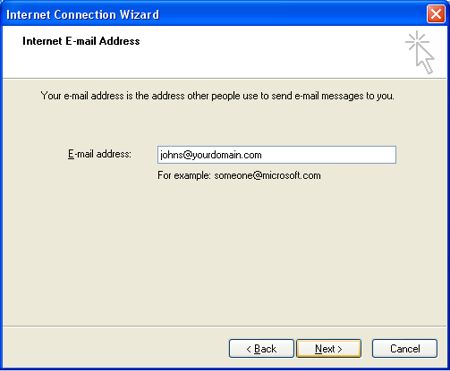
Enter the email address given to you by Cardinalfactor.
Step 4
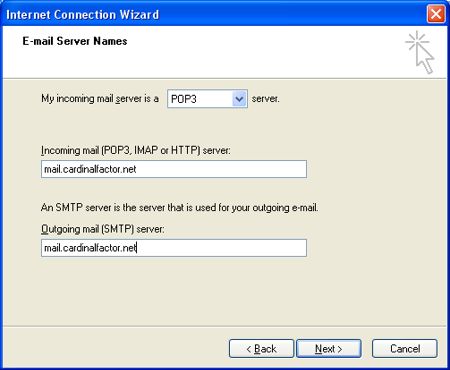
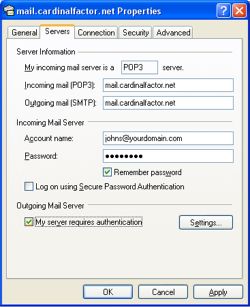
Leave "My incoming mail server is a" as "POP3" and enter "mail.cardinalfactor.net" into the two text boxes as shown.
Step 5
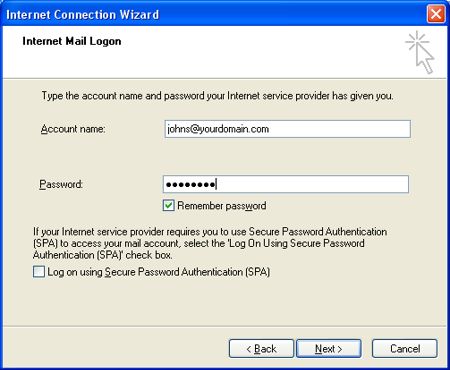
Enter you account name and password assigned to you (account is same as your email address)
Step 6
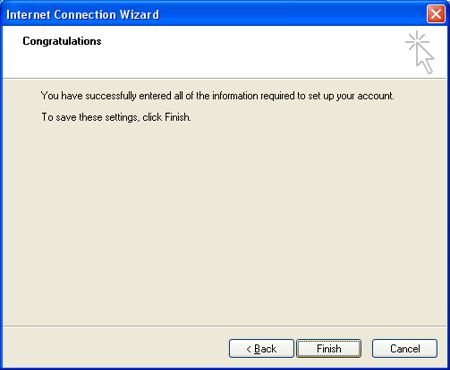
Click "Finish"
Step 7
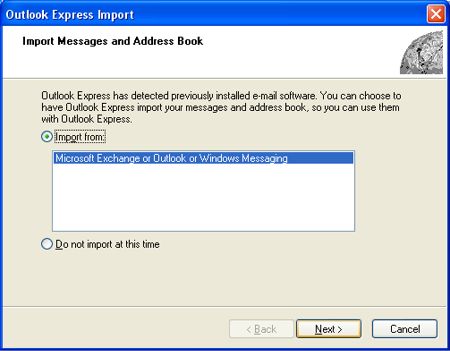
If you have an existing email account with another application Outlook Express may prompt you to run the "Import Wizard". If you wish to import messages and/or addresses then do so at this time. Make your choice and click next. If you chose not to import at this time you are finished.
Step 8
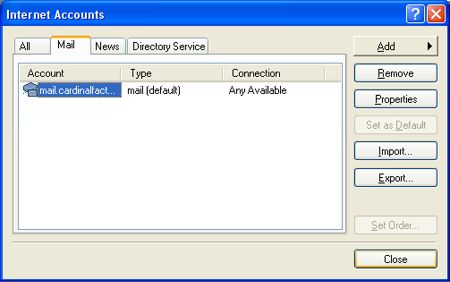
From your main Outlook Express window, click on "Tools" and then "Accounts" and then on the "Mail" tab.
Step 9
Highlight the account "mail.cardinalfactor.net" and click on the properties button on the right of the screen.
Step 10
Click on the "Servers" tab and at the bottom check off "My server requires authentication".
Step 11
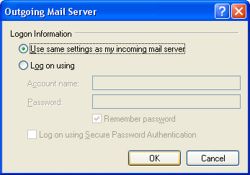
Click on the "Settings" button and verify that "Use same settings as my incoming mail server" is the chosen option and click "OK".
Step 12
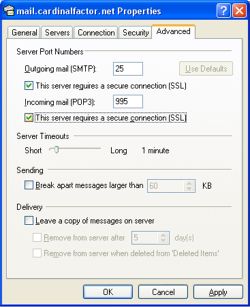
Click on the "Advanced" tab and check off "This server requires a secure connection(SSL)" under both the "Outgoing mail (SMTP)" and "Incoming mail (POP3) and click "OK".
Step 13
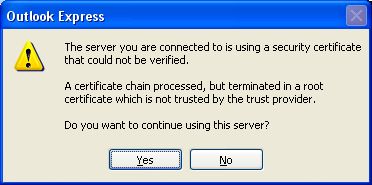
Click on "OK" or "CLOSE" to close any remaining dialogue boxes. NOTE: When you 1st open Outlook Express and it sends and receives for the 1st time you will be prompted about a "security certificate that cannot be verified". This is OK, just click on "Yes".